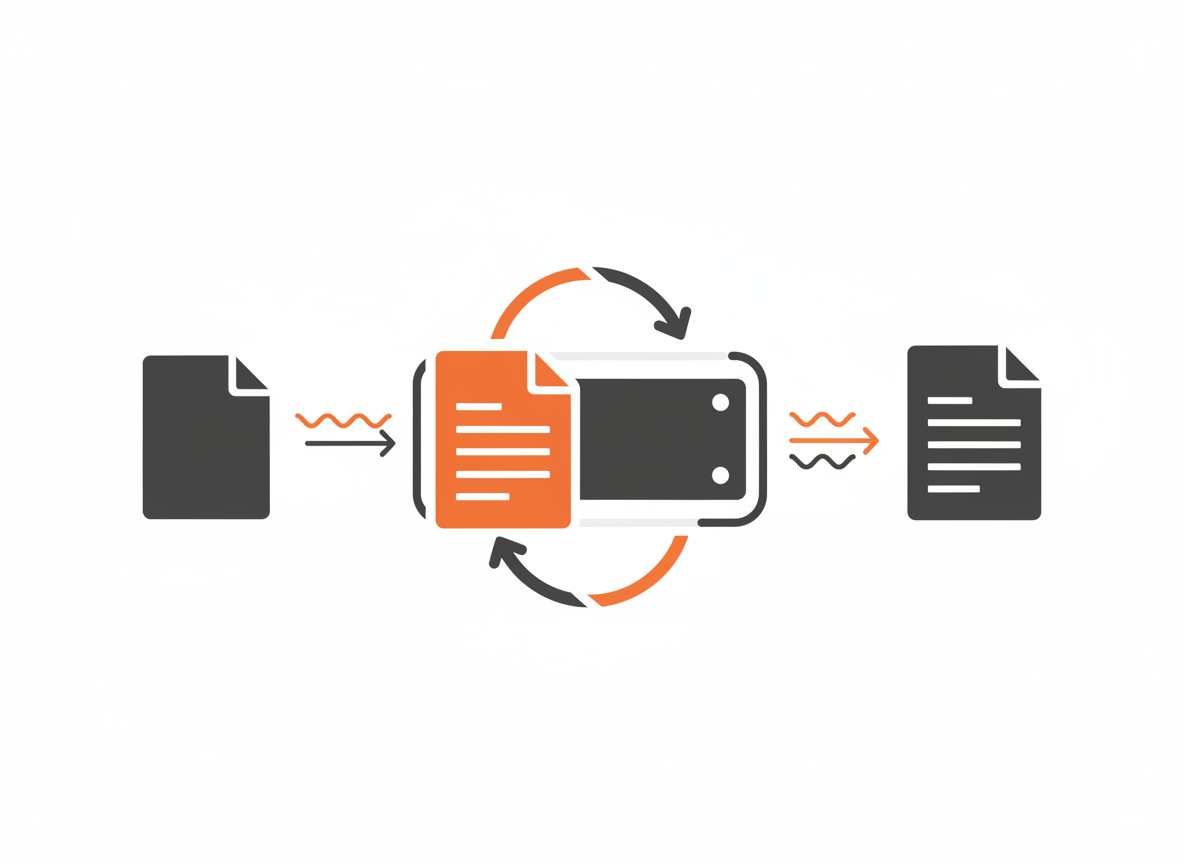
Programs often need to persist data. Without files, everything disappears when the program ends. File I/O lets you save data, read configuration, process logs, and work with user documents.
Java provides multiple ways to read and write files. This tutorial covers the most practical approaches for common tasks.
The File Class
The File class represents a file or directory path. It doesn’t read or write content, just handles path information:
import java.io.File;

File file = new File("data.txt");

System.out.println("Name: " + file.getName());        // data.txt
System.out.println("Path: " + file.getPath());        // data.txt
System.out.println("Absolute: " + file.getAbsolutePath());
System.out.println("Exists: " + file.exists());
System.out.println("Is file: " + file.isFile());
System.out.println("Is directory: " + file.isDirectory());
Useful File methods:
exists()– checks if the file existsisFile()– true if it’s a file (not directory)isDirectory()– true if it’s a directorylength()– file size in bytesdelete()– deletes the filemkdir()– creates a directorylistFiles()– lists directory contents
Writing Text Files
Using FileWriter
import java.io.FileWriter;
import java.io.IOException;

try (FileWriter writer = new FileWriter("output.txt")) {
    writer.write("Hello, World!\n");
    writer.write("This is line 2.\n");
    writer.write("This is line 3.\n");
    System.out.println("File written successfully");
} catch (IOException e) {
    System.out.println("Error writing file: " + e.getMessage());
}
FileWriter creates the file if it doesn’t exist. By default, it overwrites existing content.
Appending to Files
Pass true as the second argument to append instead of overwrite:
try (FileWriter writer = new FileWriter("log.txt", true)) {
    writer.write("New log entry\n");
} catch (IOException e) {
    System.out.println("Error: " + e.getMessage());
}
Using BufferedWriter
BufferedWriter improves performance for many small writes:
import java.io.BufferedWriter;
import java.io.FileWriter;
import java.io.IOException;

try (BufferedWriter writer = new BufferedWriter(new FileWriter("output.txt"))) {
    writer.write("Line 1");
    writer.newLine();  // Platform-independent line break
    writer.write("Line 2");
    writer.newLine();
    writer.write("Line 3");
} catch (IOException e) {
    System.out.println("Error: " + e.getMessage());
}
The newLine() method writes the correct line ending for the current operating system.
Using PrintWriter
PrintWriter provides convenient methods like println():
import java.io.PrintWriter;
import java.io.IOException;

try (PrintWriter writer = new PrintWriter("output.txt")) {
    writer.println("Line 1");
    writer.println("Line 2");
    writer.printf("Formatted: %d + %d = %d%n", 2, 3, 5);
} catch (IOException e) {
    System.out.println("Error: " + e.getMessage());
}
Reading Text Files
Using Scanner
Scanner works with files just like it does with console input:
import java.io.File;
import java.io.FileNotFoundException;
import java.util.Scanner;

try (Scanner scanner = new Scanner(new File("input.txt"))) {
    while (scanner.hasNextLine()) {
        String line = scanner.nextLine();
        System.out.println(line);
    }
} catch (FileNotFoundException e) {
    System.out.println("File not found: " + e.getMessage());
}
Using BufferedReader
BufferedReader is efficient for reading large files:
import java.io.BufferedReader;
import java.io.FileReader;
import java.io.IOException;

try (BufferedReader reader = new BufferedReader(new FileReader("input.txt"))) {
    String line;
    while ((line = reader.readLine()) != null) {
        System.out.println(line);
    }
} catch (IOException e) {
    System.out.println("Error reading file: " + e.getMessage());
}
The readLine() method returns null when the file ends.
Reading Entire File at Once
For smaller files, read everything into a String or List:
import java.nio.file.Files;
import java.nio.file.Paths;
import java.io.IOException;
import java.util.List;

// Read all lines into a List
try {
    List<String> lines = Files.readAllLines(Paths.get("input.txt"));
    for (String line : lines) {
        System.out.println(line);
    }
} catch (IOException e) {
    System.out.println("Error: " + e.getMessage());
}

// Read entire file as a single String
try {
    String content = Files.readString(Paths.get("input.txt"));
    System.out.println(content);
} catch (IOException e) {
    System.out.println("Error: " + e.getMessage());
}
The Files class (from java.nio.file) provides modern, convenient methods for file operations.
Working with Paths
The Path class represents file paths more flexibly than File:
import java.nio.file.Path;
import java.nio.file.Paths;

Path path = Paths.get("folder", "subfolder", "file.txt");
System.out.println(path);  // folder/subfolder/file.txt (or \ on Windows)

Path absolute = path.toAbsolutePath();
System.out.println(absolute);

Path parent = path.getParent();
System.out.println(parent);  // folder/subfolder

Path filename = path.getFileName();
System.out.println(filename);  // file.txt
Creating and Deleting Files
import java.nio.file.Files;
import java.nio.file.Path;
import java.nio.file.Paths;
import java.io.IOException;

Path path = Paths.get("newfile.txt");

// Create file
try {
    Files.createFile(path);
    System.out.println("File created");
} catch (IOException e) {
    System.out.println("Could not create file: " + e.getMessage());
}

// Delete file
try {
    Files.delete(path);
    System.out.println("File deleted");
} catch (IOException e) {
    System.out.println("Could not delete file: " + e.getMessage());
}

// Delete if exists (no exception if missing)
try {
    boolean deleted = Files.deleteIfExists(path);
    System.out.println("Deleted: " + deleted);
} catch (IOException e) {
    System.out.println("Error: " + e.getMessage());
}
Creating Directories
import java.nio.file.Files;
import java.nio.file.Path;
import java.nio.file.Paths;
import java.io.IOException;

// Create single directory
try {
    Files.createDirectory(Paths.get("newdir"));
} catch (IOException e) {
    System.out.println("Error: " + e.getMessage());
}

// Create nested directories
try {
    Files.createDirectories(Paths.get("parent/child/grandchild"));
} catch (IOException e) {
    System.out.println("Error: " + e.getMessage());
}
createDirectory() fails if parent directories don’t exist. createDirectories() creates all needed parent directories.
Copying and Moving Files
import java.nio.file.Files;
import java.nio.file.Path;
import java.nio.file.Paths;
import java.nio.file.StandardCopyOption;
import java.io.IOException;

Path source = Paths.get("original.txt");
Path destination = Paths.get("copy.txt");

// Copy file
try {
    Files.copy(source, destination);
    System.out.println("File copied");
} catch (IOException e) {
    System.out.println("Error: " + e.getMessage());
}

// Copy with overwrite
try {
    Files.copy(source, destination, StandardCopyOption.REPLACE_EXISTING);
} catch (IOException e) {
    System.out.println("Error: " + e.getMessage());
}

// Move/rename file
try {
    Files.move(source, Paths.get("renamed.txt"));
} catch (IOException e) {
    System.out.println("Error: " + e.getMessage());
}
Listing Directory Contents
import java.io.File;

File directory = new File(".");  // Current directory

File[] files = directory.listFiles();
if (files != null) {
    for (File file : files) {
        String type = file.isDirectory() ? "[DIR]" : "[FILE]";
        System.out.println(type + " " + file.getName());
    }
}
Or with the modern Files API:
import java.nio.file.Files;
import java.nio.file.Path;
import java.nio.file.Paths;
import java.io.IOException;
import java.util.stream.Stream;

try (Stream<Path> paths = Files.list(Paths.get("."))) {
    paths.forEach(path -> System.out.println(path.getFileName()));
} catch (IOException e) {
    System.out.println("Error: " + e.getMessage());
}
Practical Example: Simple Note Manager
import java.io.*;
import java.nio.file.*;
import java.util.*;

public class NoteManager {
    private static final String NOTES_DIR = "notes";

    public static void main(String[] args) {
        Scanner scanner = new Scanner(System.in);
        createNotesDirectory();

        while (true) {
            System.out.println("\n--- Note Manager ---");
            System.out.println("1. Create note");
            System.out.println("2. List notes");
            System.out.println("3. Read note");
            System.out.println("4. Delete note");
            System.out.println("5. Exit");
            System.out.print("Choice: ");

            int choice = scanner.nextInt();
            scanner.nextLine();

            switch (choice) {
                case 1: createNote(scanner); break;
                case 2: listNotes(); break;
                case 3: readNote(scanner); break;
                case 4: deleteNote(scanner); break;
                case 5:
                    System.out.println("Goodbye!");
                    return;
                default:
                    System.out.println("Invalid choice");
            }
        }
    }

    private static void createNotesDirectory() {
        try {
            Files.createDirectories(Paths.get(NOTES_DIR));
        } catch (IOException e) {
            System.out.println("Could not create notes directory");
        }
    }

    private static void createNote(Scanner scanner) {
        System.out.print("Note title: ");
        String title = scanner.nextLine();
        String filename = title.replaceAll("[^a-zA-Z0-9]", "_") + ".txt";

        System.out.println("Enter note content (empty line to finish):");
        StringBuilder content = new StringBuilder();
        String line;
        while (!(line = scanner.nextLine()).isEmpty()) {
            content.append(line).append("\n");
        }

        Path path = Paths.get(NOTES_DIR, filename);
        try (PrintWriter writer = new PrintWriter(path.toFile())) {
            writer.println("Title: " + title);
            writer.println("Created: " + new Date());
            writer.println("---");
            writer.print(content);
            System.out.println("Note saved: " + filename);
        } catch (IOException e) {
            System.out.println("Error saving note: " + e.getMessage());
        }
    }

    private static void listNotes() {
        File dir = new File(NOTES_DIR);
        File[] files = dir.listFiles((d, name) -> name.endsWith(".txt"));

        if (files == null || files.length == 0) {
            System.out.println("No notes found");
            return;
        }

        System.out.println("\nYour notes:");
        for (int i = 0; i < files.length; i++) {
            System.out.println((i + 1) + ". " + files[i].getName());
        }
    }

    private static void readNote(Scanner scanner) {
        System.out.print("Note filename: ");
        String filename = scanner.nextLine();
        if (!filename.endsWith(".txt")) {
            filename += ".txt";
        }

        Path path = Paths.get(NOTES_DIR, filename);
        try {
            String content = Files.readString(path);
            System.out.println("\n" + content);
        } catch (IOException e) {
            System.out.println("Could not read note: " + e.getMessage());
        }
    }

    private static void deleteNote(Scanner scanner) {
        System.out.print("Note filename to delete: ");
        String filename = scanner.nextLine();
        if (!filename.endsWith(".txt")) {
            filename += ".txt";
        }

        Path path = Paths.get(NOTES_DIR, filename);
        try {
            if (Files.deleteIfExists(path)) {
                System.out.println("Note deleted");
            } else {
                System.out.println("Note not found");
            }
        } catch (IOException e) {
            System.out.println("Error deleting note: " + e.getMessage());
        }
    }
}
Common Mistakes
Forgetting to close resources. Always use try-with-resources to ensure files are closed properly.
Hardcoding path separators. Don’t use "folder\\file.txt". Use Paths.get("folder", "file.txt") or File.separator for cross-platform compatibility.
Not handling exceptions. File operations can fail in many ways. Always catch IOException.
Reading large files into memory. Use BufferedReader for line-by-line processing of large files instead of reading everything at once.
Assuming files exist. Always check with Files.exists() or handle FileNotFoundException.
What’s Next
You’ve learned to store data in files. The Collections Framework provides powerful in-memory data structures beyond ArrayList. The next tutorial surveys maps, sets, queues, and other collections for organizing data efficiently.
Related: Java Exception Handling | Java Collections Framework Overview
Sources
- Oracle. “Basic I/O.” The Java Tutorials. docs.oracle.com
- Oracle. “File I/O (Featuring NIO.2).” The Java Tutorials. docs.oracle.com