Every Java project beyond a single file needs to manage dependencies. You need a testing framework, a logging library, a database driver. Downloading JAR files manually and managing classpaths gets tedious fast. Maven solves this.
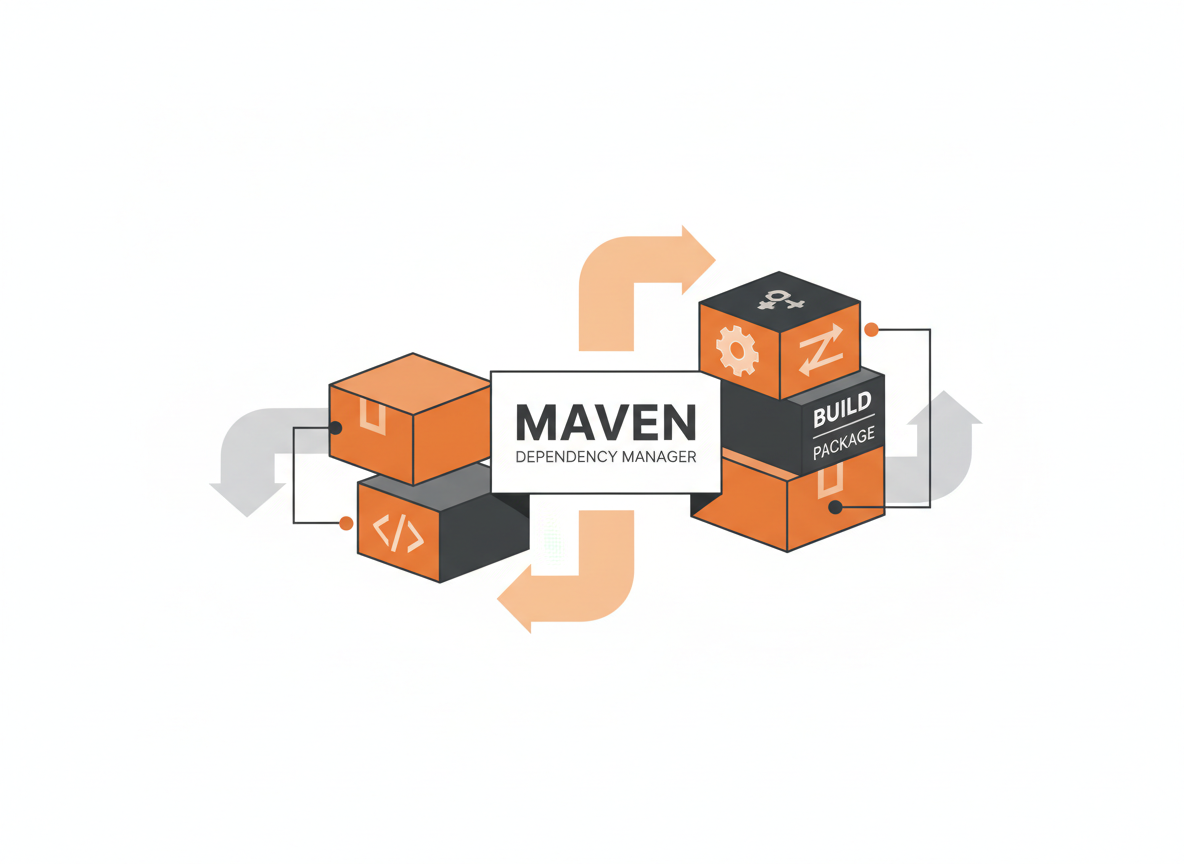
Maven is a build tool that handles dependency management, compilation, testing, packaging, and deployment. You describe what your project needs in an XML file, and Maven figures out the rest. It downloads libraries, compiles your code, runs tests, and packages everything into a JAR or WAR file.
This tutorial covers Maven fundamentals: project structure, the POM file, dependency management, and common commands you’ll use daily.
Installing Maven
Maven requires Java. Verify you have Java installed first:
java -versionWindows:
- Download the binary zip from maven.apache.org/download.cgi
- Extract to a folder like C:\Program Files\Apache\maven
- Add the bin folder to your PATH environment variable
- Set MAVEN_HOME to the Maven folder
macOS (with Homebrew):
brew install mavenLinux (Debian/Ubuntu):
sudo apt update
sudo apt install maven
Verify the installation:
mvn -versionYou should see Maven’s version, Java version, and OS information.
Creating a Maven Project
Maven can generate a project skeleton using archetypes (templates). The quickstart archetype creates a simple Java application:
mvn archetype:generate \
  -DgroupId=com.example \
  -DartifactId=my-app \
  -DarchetypeArtifactId=maven-archetype-quickstart \
  -DarchetypeVersion=1.4 \
  -DinteractiveMode=false
This creates a folder called my-app with the standard Maven structure:
my-app/
    pom.xml
    src/
        main/
            java/
                com/
                    example/
                        App.java
        test/
            java/
                com/
                    example/
                        AppTest.java
The structure is standardized. Every Maven project follows this layout, which means you can jump into any Maven project and immediately know where to find things.
src/main/java: Your application source code.
src/main/resources: Configuration files, properties, XML files that get included in the build.
src/test/java: Test source code.
src/test/resources: Test-specific resources.
target/: Generated output (compiled classes, JAR files). Maven creates this folder. Don’t commit it to version control.
The POM File
The pom.xml file is Maven’s configuration. POM stands for Project Object Model. It defines your project’s identity, dependencies, build settings, and plugins.
Here’s a basic POM:
<?xml version="1.0" encoding="UTF-8"?>
<project xmlns="http://maven.apache.org/POM/4.0.0"
         xmlns:xsi="http://www.w3.org/2001/XMLSchema-instance"
         xsi:schemaLocation="http://maven.apache.org/POM/4.0.0
                             http://maven.apache.org/xsd/maven-4.0.0.xsd">

    <modelVersion>4.0.0</modelVersion>

    <groupId>com.example</groupId>
    <artifactId>my-app</artifactId>
    <version>1.0-SNAPSHOT</version>
    <packaging>jar</packaging>

    <name>My Application</name>
    <description>A sample Maven project</description>

    <properties>
        <maven.compiler.source>21</maven.compiler.source>
        <maven.compiler.target>21</maven.compiler.target>
        <project.build.sourceEncoding>UTF-8</project.build.sourceEncoding>
    </properties>

    <dependencies>
        <!-- Dependencies go here -->
    </dependencies>

</project>
Project Coordinates
Three elements uniquely identify a Maven project:
groupId: Usually your organization’s domain in reverse. Like a package name. Examples: com.google, org.apache, com.example.
artifactId: The project name. Should be lowercase with hyphens. Examples: my-app, spring-core, junit-jupiter.
version: The project version. SNAPSHOT indicates a development version. Releases drop the SNAPSHOT suffix.
Together, these form coordinates that uniquely identify any artifact in the Maven ecosystem. When you add a dependency, you specify its coordinates.
Properties
The properties section defines variables you can reference elsewhere in the POM:
<properties>
    <maven.compiler.source>21</maven.compiler.source>
    <maven.compiler.target>21</maven.compiler.target>
    <junit.version>5.10.1</junit.version>
    <project.build.sourceEncoding>UTF-8</project.build.sourceEncoding>
</properties>
Reference properties with ${property.name}:
<dependency>
    <groupId>org.junit.jupiter</groupId>
    <artifactId>junit-jupiter</artifactId>
    <version>${junit.version}</version>
    <scope>test</scope>
</dependency>
Managing Dependencies
Dependencies are libraries your project needs. Add them to the dependencies section of your POM:
<dependencies>
    <!-- JUnit 5 for testing -->
    <dependency>
        <groupId>org.junit.jupiter</groupId>
        <artifactId>junit-jupiter</artifactId>
        <version>5.10.1</version>
        <scope>test</scope>
    </dependency>

    <!-- Google Gson for JSON parsing -->
    <dependency>
        <groupId>com.google.code.gson</groupId>
        <artifactId>gson</artifactId>
        <version>2.10.1</version>
    </dependency>

    <!-- SLF4J logging -->
    <dependency>
        <groupId>org.slf4j</groupId>
        <artifactId>slf4j-api</artifactId>
        <version>2.0.9</version>
    </dependency>
</dependencies>
Maven downloads these JARs automatically from the Maven Central repository. It also downloads their dependencies (transitive dependencies). Gson might need other libraries, and Maven fetches those too.
Finding Dependencies
Search for libraries on search.maven.org or mvnrepository.com. These sites show the XML snippet to copy into your POM.
Dependency Scope
The scope element controls when a dependency is available:
compile (default): Available everywhere. Included in the final package.
test: Only available during testing. JUnit, Mockito, and other test libraries use this.
provided: Available during compilation but not packaged. The runtime environment provides it. Servlet API uses this since the web server provides it.
runtime: Not needed for compilation but required at runtime. JDBC drivers often use this.
<!-- Only for tests -->
<dependency>
    <groupId>org.junit.jupiter</groupId>
    <artifactId>junit-jupiter</artifactId>
    <version>5.10.1</version>
    <scope>test</scope>
</dependency>

<!-- Server provides this -->
<dependency>
    <groupId>jakarta.servlet</groupId>
    <artifactId>jakarta.servlet-api</artifactId>
    <version>6.0.0</version>
    <scope>provided</scope>
</dependency>

<!-- Only needed at runtime -->
<dependency>
    <groupId>com.mysql</groupId>
    <artifactId>mysql-connector-j</artifactId>
    <version>8.2.0</version>
    <scope>runtime</scope>
</dependency>
Maven Commands
Run Maven commands from the directory containing pom.xml.
mvn compile
Compiles your source code. Output goes to target/classes.
mvn compilemvn test
Runs tests using JUnit or another test framework. Also compiles if needed.
mvn testmvn package
Compiles, tests, and packages the project into a JAR (or WAR for web apps). The output goes to target/.
mvn packageAfter running this, you’ll have target/my-app-1.0-SNAPSHOT.jar.
mvn install
Does everything package does, then installs the JAR to your local Maven repository (~/.m2/repository). Other local projects can then use it as a dependency.
mvn installmvn clean
Deletes the target/ directory. Use this to start fresh.
mvn cleanCombine commands:
mvn clean package    # Clean, then package
mvn clean install    # Clean, then install
mvn dependency:tree
Shows all dependencies including transitive ones. Useful for debugging version conflicts.
mvn dependency:treeOutput shows the dependency hierarchy:
[INFO] com.example:my-app:jar:1.0-SNAPSHOT
[INFO] +- com.google.code.gson:gson:jar:2.10.1:compile
[INFO] +- org.slf4j:slf4j-api:jar:2.0.9:compile
[INFO] \- org.junit.jupiter:junit-jupiter:jar:5.10.1:test
[INFO]    +- org.junit.jupiter:junit-jupiter-api:jar:5.10.1:test
[INFO]    |  +- org.opentest4j:opentest4j:jar:1.3.0:test
[INFO]    |  \- org.junit.platform:junit-platform-commons:jar:1.10.1:test
...
The Build Lifecycle
Maven has a defined build lifecycle with phases that execute in order. When you run a phase, all previous phases run first.
The main phases in order:
- validate: Check project is correct
- compile: Compile source code
- test: Run unit tests
- package: Create JAR/WAR
- verify: Run integration tests
- install: Install to local repository
- deploy: Copy to remote repository
Running mvn package automatically runs validate, compile, and test first. Running mvn install runs everything through package, then install.
Plugins
Plugins extend Maven’s capabilities. You configure them in the build section:
<build>
    <plugins>
        <!-- Compiler plugin - set Java version -->
        <plugin>
            <groupId>org.apache.maven.plugins</groupId>
            <artifactId>maven-compiler-plugin</artifactId>
            <version>3.11.0</version>
            <configuration>
                <source>21</source>
                <target>21</target>
            </configuration>
        </plugin>

        <!-- JAR plugin - configure manifest -->
        <plugin>
            <groupId>org.apache.maven.plugins</groupId>
            <artifactId>maven-jar-plugin</artifactId>
            <version>3.3.0</version>
            <configuration>
                <archive>
                    <manifest>
                        <mainClass>com.example.App</mainClass>
                    </manifest>
                </archive>
            </configuration>
        </plugin>
    </plugins>
</build>
Creating an Executable JAR
A regular JAR doesn’t include dependencies. The maven-shade-plugin creates a “fat JAR” with everything bundled:
<plugin>
    <groupId>org.apache.maven.plugins</groupId>
    <artifactId>maven-shade-plugin</artifactId>
    <version>3.5.1</version>
    <executions>
        <execution>
            <phase>package</phase>
            <goals>
                <goal>shade</goal>
            </goals>
            <configuration>
                <transformers>
                    <transformer implementation="org.apache.maven.plugins.shade.resource.ManifestResourceTransformer">
                        <mainClass>com.example.App</mainClass>
                    </transformer>
                </transformers>
            </configuration>
        </execution>
    </executions>
</plugin>
After mvn package, run the JAR directly:
java -jar target/my-app-1.0-SNAPSHOT.jarRunning Your Application
The exec-maven-plugin lets you run your application from Maven:
<plugin>
    <groupId>org.codehaus.mojo</groupId>
    <artifactId>exec-maven-plugin</artifactId>
    <version>3.1.1</version>
    <configuration>
        <mainClass>com.example.App</mainClass>
    </configuration>
</plugin>
Run with:
mvn exec:javaA Complete POM Example
Here’s a practical POM for a command-line application:
<?xml version="1.0" encoding="UTF-8"?>
<project xmlns="http://maven.apache.org/POM/4.0.0"
         xmlns:xsi="http://www.w3.org/2001/XMLSchema-instance"
         xsi:schemaLocation="http://maven.apache.org/POM/4.0.0
                             http://maven.apache.org/xsd/maven-4.0.0.xsd">

    <modelVersion>4.0.0</modelVersion>

    <groupId>com.example</groupId>
    <artifactId>my-app</artifactId>
    <version>1.0-SNAPSHOT</version>
    <packaging>jar</packaging>

    <name>My Application</name>

    <properties>
        <maven.compiler.source>21</maven.compiler.source>
        <maven.compiler.target>21</maven.compiler.target>
        <project.build.sourceEncoding>UTF-8</project.build.sourceEncoding>
        <junit.version>5.10.1</junit.version>
    </properties>

    <dependencies>
        <!-- JSON parsing -->
        <dependency>
            <groupId>com.google.code.gson</groupId>
            <artifactId>gson</artifactId>
            <version>2.10.1</version>
        </dependency>

        <!-- HTTP client -->
        <dependency>
            <groupId>com.squareup.okhttp3</groupId>
            <artifactId>okhttp</artifactId>
            <version>4.12.0</version>
        </dependency>

        <!-- Logging -->
        <dependency>
            <groupId>ch.qos.logback</groupId>
            <artifactId>logback-classic</artifactId>
            <version>1.4.14</version>
        </dependency>

        <!-- Testing -->
        <dependency>
            <groupId>org.junit.jupiter</groupId>
            <artifactId>junit-jupiter</artifactId>
            <version>${junit.version}</version>
            <scope>test</scope>
        </dependency>
    </dependencies>

    <build>
        <plugins>
            <!-- Surefire plugin for running tests -->
            <plugin>
                <groupId>org.apache.maven.plugins</groupId>
                <artifactId>maven-surefire-plugin</artifactId>
                <version>3.2.3</version>
            </plugin>

            <!-- Create executable JAR -->
            <plugin>
                <groupId>org.apache.maven.plugins</groupId>
                <artifactId>maven-shade-plugin</artifactId>
                <version>3.5.1</version>
                <executions>
                    <execution>
                        <phase>package</phase>
                        <goals>
                            <goal>shade</goal>
                        </goals>
                        <configuration>
                            <transformers>
                                <transformer implementation="org.apache.maven.plugins.shade.resource.ManifestResourceTransformer">
                                    <mainClass>com.example.App</mainClass>
                                </transformer>
                            </transformers>
                        </configuration>
                    </execution>
                </executions>
            </plugin>
        </plugins>
    </build>

</project>
IDE Integration
All major IDEs support Maven natively.
IntelliJ IDEA: Open the pom.xml file directly. IntelliJ imports the project automatically. The Maven tool window (View > Tool Windows > Maven) shows lifecycle phases and plugins you can run with a click.
Eclipse: File > Import > Maven > Existing Maven Projects. Point to the folder containing pom.xml.
VS Code: Install the “Extension Pack for Java” which includes Maven support. Open the folder containing pom.xml.
IDEs automatically download dependencies, update the classpath, and provide code completion for classes in your dependencies.
The Local Repository
Maven downloads dependencies to a local repository at ~/.m2/repository (on Windows, C:\Users\YourName\.m2\repository). This cache means Maven only downloads each artifact once.
If a dependency seems corrupted or you want to force a fresh download:
# Delete specific dependency
rm -rf ~/.m2/repository/com/google/code/gson

# Force update
mvn clean install -U
The -U flag forces Maven to check for updated snapshots and releases.
Maven vs Gradle
Gradle is another popular build tool. It uses Groovy or Kotlin instead of XML, which some developers prefer. Spring Boot projects often use Gradle.
Maven advantages: More mature, more documentation, simpler to understand, XML is more explicit.
Gradle advantages: Faster builds, more flexible, less verbose configuration, better for complex multi-project builds.
Both work well. Many organizations have standardized on one or the other. Learn whichever your team uses, and you can pick up the other quickly since the concepts are similar.
Common Issues
“Could not resolve dependencies”: Check your internet connection. Verify the dependency coordinates are correct. Try mvn clean install -U to force updates.
“Source option 5 is no longer supported”: Your POM doesn’t specify a Java version. Add the maven.compiler.source and maven.compiler.target properties.
Tests not running: Make sure test class names end with “Test” (like UserServiceTest). Maven’s Surefire plugin uses naming conventions to find tests.
JAR not executable: You need to configure the main class in the manifest. Use the maven-jar-plugin or maven-shade-plugin as shown above.
Previous: Introduction to JDBC
Related: How to Install Java | Best Java IDEs Compared | Setting Up Java in VS Code
Sources
- Apache. “Maven Getting Started Guide.” maven.apache.org/guides/getting-started
- Apache. “POM Reference.” maven.apache.org/pom.html
- Apache. “Maven Central Repository.” search.maven.org